Times Union Access: You Asked, We Listened

Library users have been asking for online access to the Times Union newspaper, so we made it happen! Access is available to anyone connected to the library’s Wi-Fi network via this link: https://bit.ly/egtimesunion. If you are an East Greenbush/Schodack resident, you can use this same link to access the Times Union from anywhere! Just enter you library account barcode (without spaces) when prompted. If your card is rejected, there could be a few reasons:

  • There is a space somewhere in the number entered. Solution: try entering the number again.
  • Your library card has expired. Solution: contact us to renew your card.
  • Your library card is no longer in good standing (too many fines/fees/overdue items). Solution: login to your account and pay any fines/fees accrued. Then try again.
  • You are not a resident of East Greenbush/Schodack. Solution: contact the library where you pay taxes and request Times Union online access.
  • You are a resident, but to do not have a resident card. Solution: contact us to prove residency and we will issue a new resident card at no charge.

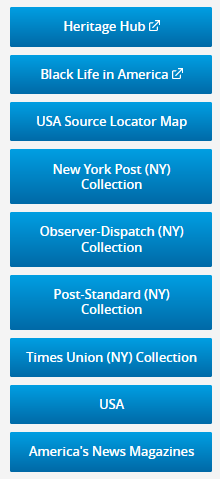
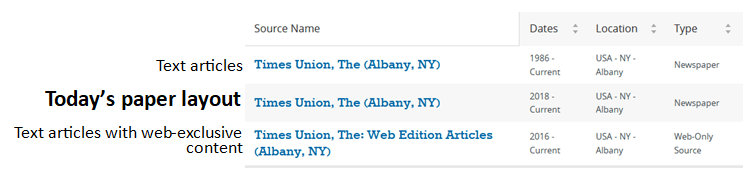
After login, there are three options listed. Select the middle option to view text and images in a standard newspaper view:

Select a date on the next page to view that day’s issue.

Got questions? Want to let us know what you think of the service? Please let us know in the comments.

Add Clickable Images to Your Emails

Image of a finger clicking on an imaginary mouse

There many different types of software that can be used to make an HTML email newsletter with clickable images, but what if you just want to add it to a regular email message? It seems like inserting the picture and then clicking “insert link” should work, but it doesn’t. As it turns out, both Gmail and Outlook have this functionality, but there is a trick to making it work, especially on the Gmail platform.

For instructions on how to add clickable images to your emails, check out this Tech-Talk article. If you are prompted to login, enter eglibrary as the username and password.

Wrap Text in a Cell – Excel

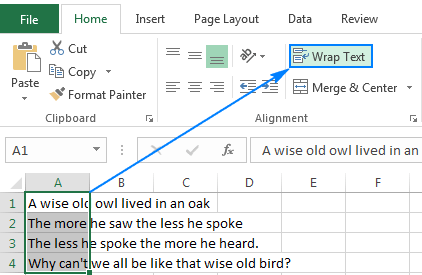
If you ever tried to put a lot of text in a small cell in Microsoft Excel, you know that only enough text to fill the cell in its current size will show. If you want to show it all, you can select the cell(s) and select “Wrap Text” in the home tab of the toolbar.

Screenshot showing Wrap Text option

This will make the cell tall enough in its current width to show all of the text. If that makes the cell too tall, you can make the cell wider by hovering over its right-side border until the cursor changes into a handle. Then click and drag to widen the cell. Use the same hover/handle method on the row to make the cell shorter.

What if you wanted to make Excel wrap all text by default? For the answer to that, check out this short Tech-Talk article. If you are prompted to login, the username and password are both eglibrary.

Taking Windows 10 to the Next Level

Windows 10 logo

Have you been using Windows 10 for a while now, but haven’t taken the time to figure out all of the details about how to use it efficiently? Never fear! Tech-Talk.com recently hosted a webinar titled, “Windows 10: Customizing to Increase Your Productivity.” In just an hour, you can catch up on several key concepts that can help save you time and minimize frustration.

If you are prompted to enter your library code when signing up for or accessing a webinar, be sure to enter eglibrary.

Got questions? Ask us in the comments.

Keeping Your Facebook Account Secure

Thief with laptop

In today’s world, bad actors are constantly trying to hack all of our accounts, and Facebook is no exception. In case you missed it, check Tech-Talk.com’s article suggesting ways to keep your account secure.

Would you like to get tips like this delivered straight to your inbox? Head to https://bit.ly/egtechtalk and sign up to receive the weekly Tech-Talk newsletter.