How to Find Digital Content from Partner Libraries in the Libby App

Recently, the creators of the LibbyApp have announced that content from partnership libraries is now easily accessible to Libby App users.

The Upper Hudson Library System partners with three other library systems: the Southern Adirondack Library System, the Mid-Hudson Library System, and the Mohawk Valley Library System. Previously, users would need to add these libraries separately to see and borrow their content. Now, these library systems can be accessed directly.

Screenshot showing the text Partner Libraries with the names Southern Adirondack Library System, Mid-Hudson Library System, and Mohawk Valley Library System underneath.

How to Find Content

There are a few ways to access content from partner libraries. First, tap on the center menu icon on the bottom navigation bar. Next, scroll down until you see the heading Partner Libraries. Tap on the name of the library to view their homepage and catalog.

Screenshot of the mid hudson library system homepage

You can also browse and use filters or search to find content. Each library system has their own homepage and featured titles.

Screenshot of the mohawk valley library system homepage

Curious about which library owns the content? You can tap on the library card icon next to each item to see the owning library. The library cards for each system have their own color scheme.

screenshot of the book cover the Unknown by Riley Sager with place hold written underneath

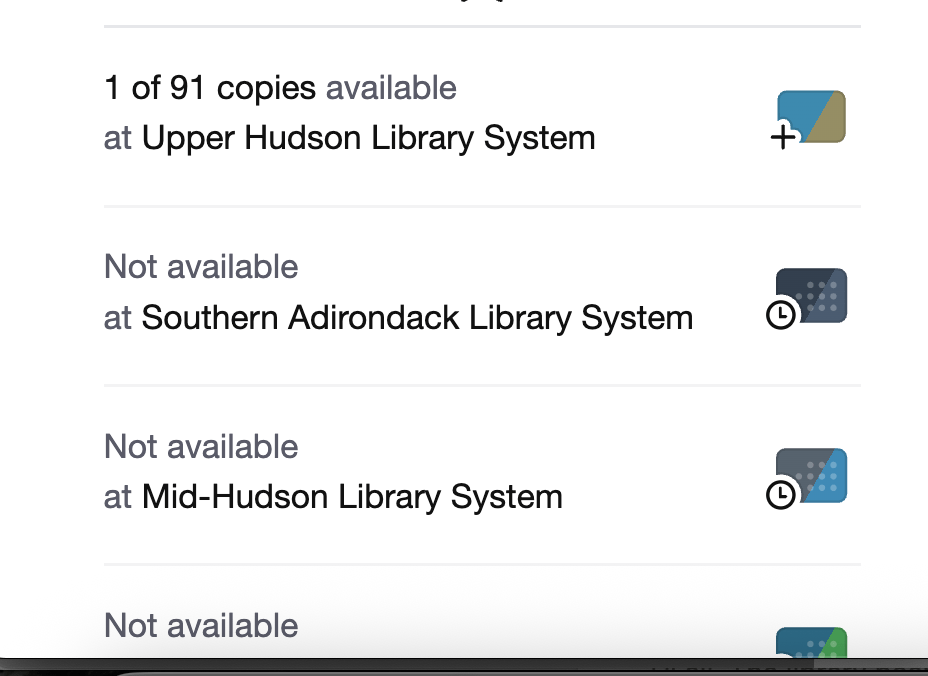
On the list of owning libraries, you can see the name of each library system and if there are copies currently available for checkout. If there is a plus sign, it means the content is currently available for checkout from that library system. A small clock means there are no copies currently available from that system. By default, you will see the library system that has available copies or the shortest wait list first on the list.

screenshot showing which libraries have the book with only 1 available from UHLS

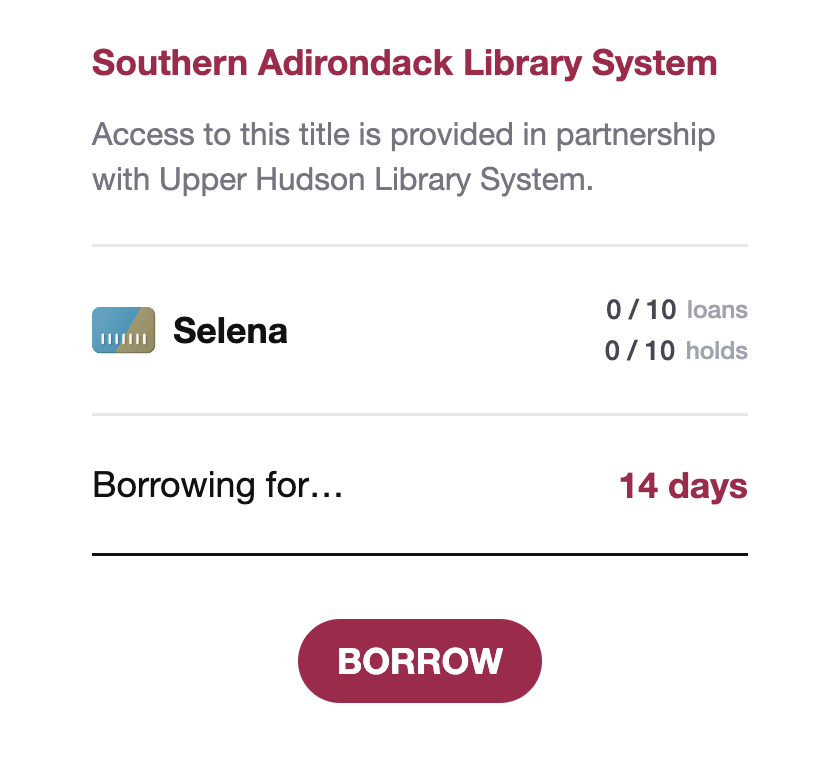
To borrow a title, tap on one that is available. Next, you will see a screen confirming your options and information about the partnership. You can change the borrow period by tapping on the number of days next to Borrowing for…

Tap the borrow button to complete the borrowing process.

screenshot showing southern adirondack library system on top and borrow information underneath

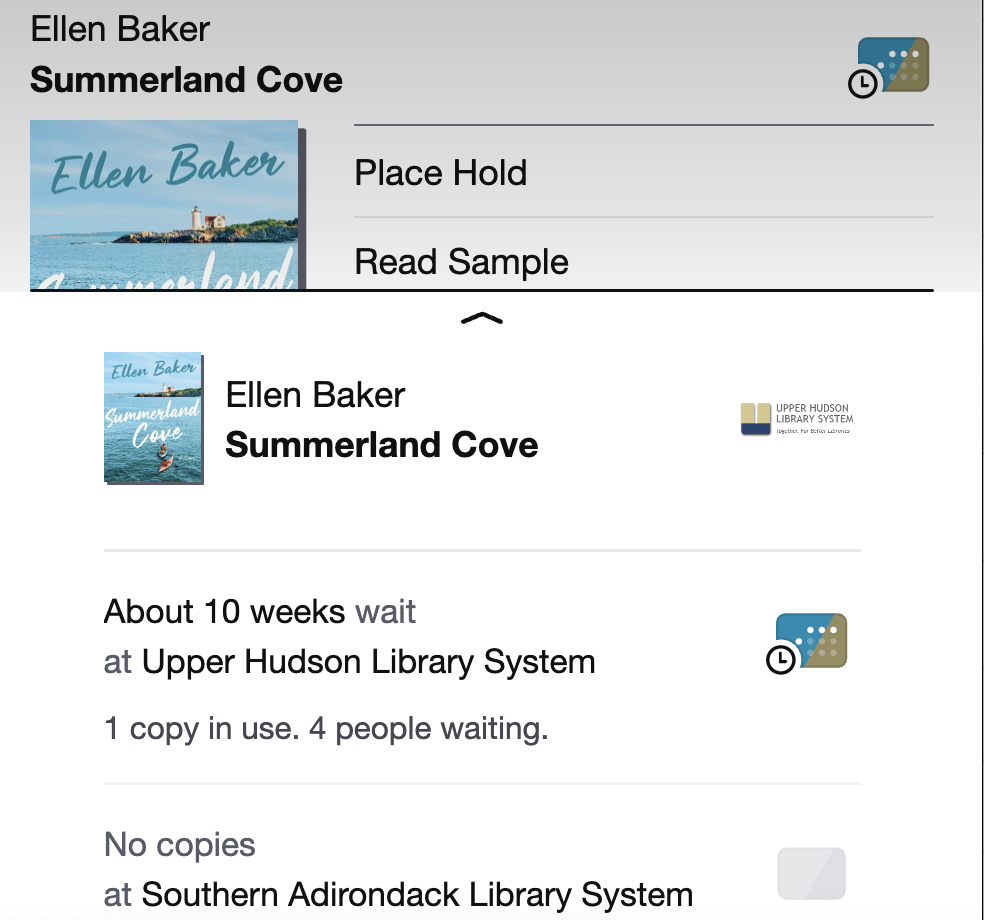
In order to place an item on hold, tap on a library system that has the clock icon on the library card. Next, you’ll see information about how long you can expect to wait for the item to be ready. Note: you will not be able to place a hold on an item from a partner library system. If an item from a partner library system is not available because it’s checked out, the status will show as not available.

screenshot showing place hold screen with a 10 week wait in the status

Content from partnership libraries will also show in search results or browsing if you have chosen UHLS as your library from the Your Libraries list. Looking at the color scheme of the library card will let you know what library system owns the content. If UHLS does not own the item, you will need to choose deep search for the results to appear.

Managing Cards

If you would like to remove cards from the Libby app, tap on on Menu, and then the library card icon next to Upper Hudson Library System.

Screenshot showing the text Upper Hudson Library System with a small library card icon with a star next to it.

To remove partner libraries, tap the three dots, and then tap on Partner Libraries. Under Partnerships, tap the word remove next to the system you would like to remove. You will get a warning about deletion. Tap on the proceed button to confirm deletion. Please note, if a partner library is removed, all checked out items from that library will be automatically returned.

Screenshot showing a dialog box next to the words Mid Hudson Library System. Dialog box reads: this partner access will be disabled, and any associated loans or holds will be removed from your shelf.

Color Schemes

In this same section, you can change the color schemes for each system’s library card. To change the colors, tap on Personalize to select custom colors for each partner library card. This may help to differentiate each card.

If you have any questions about partner libraries, please contact the library.

Discover a New Way to Return and Delete Kindle Ebooks from Your Device

If you’re a Kindle user and regularly use the Libby app, you may have noticed you can’t return your Kindle eBooks early in the same way you may be used to. In order to return a Kindle eBook loan early, you will now need to do it on the Amazon website or Amazon app.

After the eBook has been deleted, the title will still appear on your Kindle devices. Read on to learn how to return a Kindle eBook early and how to delete returned Kindle eBooks from your Kindle.

Returning a Kindle eBook

Start by going into the Libby app or to libbyapp.com from a browser. Next, go the shelf section of the app.

Go the book you would like to return early and tap Manage Loan. From there, tap on Return Early. Next, tap on Return with Kindle.

Screenshot showing the location of the steps mentioned in the directions with manage loan, return early and return with Kindle emphasized.

Next you’ll see an Amazon window pop up. If you are not logged in to Amazon, you will be prompted to log in. There will be a message stating that the digital book has already been claimed. Click on the “return this book” link to continue.

A conformation screen will pop up asking if you’re sure you want to return this digital library loan. Tap on yes.

screenshot showing the deletion conformation page with the word yes highlighted in yellow.

You’ll get a conformation from Amazon the book has been returned. When you go back to the Libby app, you can confirm you have returned the book has been returned. If you don’t complete the return process through Amazon, the book will remain on your shelf in the Libby app.

screenshot showing Libby asking if you were able to return the ebook via Amazon with the option Yes I've returned it in bold and the additional options no, I need help and skip also shown.

Deleting a Returned eBook from Your Kindle Library

Once you have returned the book, the title will still appear in your content library on your Kindle, but you will be unable to open it or read it. When you attempt to open it, you will see an error message prompting you to purchase the book if you want to read it:

screenshot showing a Kindle e-ink with the previously returned books still displayed. Second image shows title not available with the option to purchase.

If you would like to remove it from your library so it doesn’t appear on any of your Kindle devices, there are a couple of ways to do it, depending on if you’re on the desktop website or mobile.

On the desktop website, click on Accounts & Lists in the top right corner, and then click on Content Library:

screenshot showing how to access your content library from Amazon's desktop website.

In the mobile app, tap the three lines in the bottom corner. On the next screen, tap the account icon. In a mobile browser, tap your name in the top right and then tap the see all button next to Your Account:

Screenshots showing how to access your account from the amazon app with the account button, your name and menu options emphasized.

Next, scroll down and then tap on Content Library, and then books:

screenshot from desktop Amazon website showing content library and books highlighted.

From there, scroll down to the book you want to delete and then tap the delete button. There will be a confirmation asking if you’re sure you want to delete the title. Once you confirm, you’ll get a success message the item has been deleted. It will no longer appear on any of your Kindle devices. Please note you have to be connected to WiFi for the changes to take effect.

screenshot demonstrating the delete button and the delete conformation page.

If you have any questions about either process, feel free to call the library or leave a comment below.