

The Libby App has rolled out a new setting that allows you to turn AI settings on or off with a new setting.
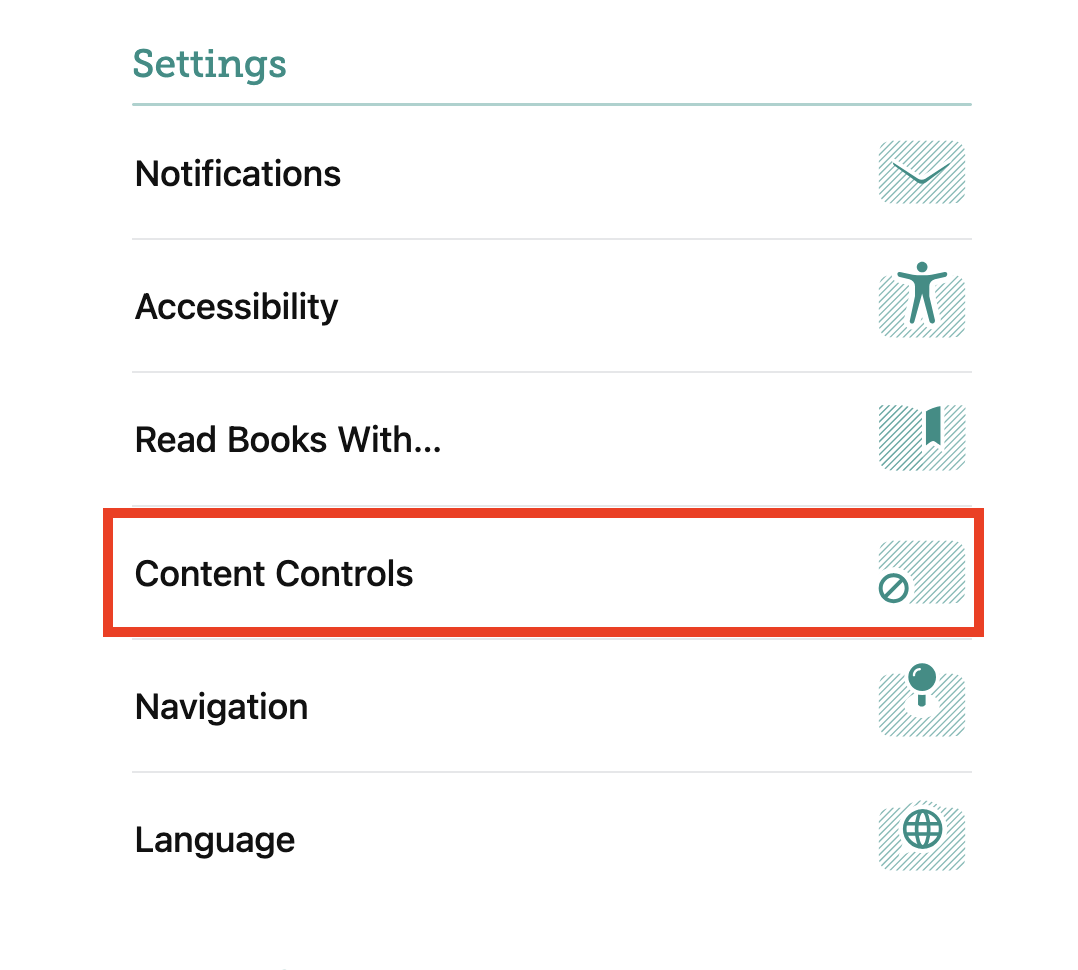
To start, open the Libby app and tap on the center navigation button.

Next, scroll down and tap on Content Controls.
To continue, tap on AI Contributions.
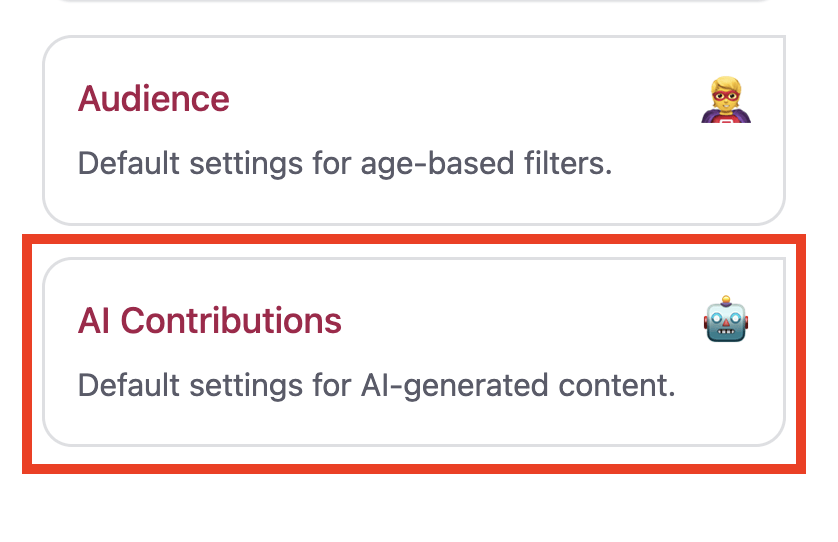
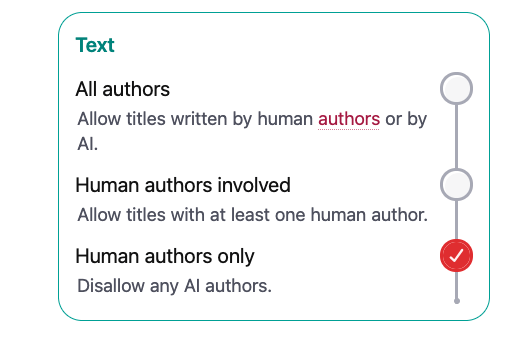
There are options for Text, Audio, Graphics, and Translation, with an option for where to apply the filters.
For each category, there are these options:
- All narrators: allow titles written, voiced, or with artwork by human or AI authors.
- Human authors involved: titles have at least one human author, narrator, or artist.
- Human authors only: block any AI authors, narrators, or artists.
To make your selection, tap on the check mark next to your selection in each category.
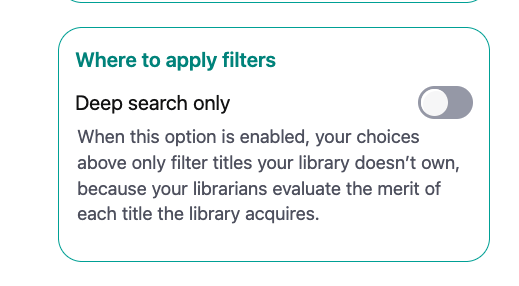
At the last step, choose where filters are applied. If checked, AI content filters only apply to titles the library does not own. To apply the filters to all searches, uncheck the deep search only option.
Changes are automatically saved.
In the age of AI, it is great to have options about the type of AI content you want to see. Have you tried these new filters? Let us know in the comments.