

Recently, the creators of the LibbyApp have announced that content from partnership libraries is now easily accessible to Libby App users.
The Upper Hudson Library System partners with three other library systems: the Southern Adirondack Library System, the Mid-Hudson Library System, and the Mohawk Valley Library System. Previously, users would need to add these libraries separately to see and borrow their content. Now, these library systems can be accessed directly.

How to Find Content
There are a few ways to access content from partner libraries. First, tap on the center menu icon on the bottom navigation bar. Next, scroll down until you see the heading Partner Libraries. Tap on the name of the library to view their homepage and catalog.

You can also browse and use filters or search to find content. Each library system has their own homepage and featured titles.

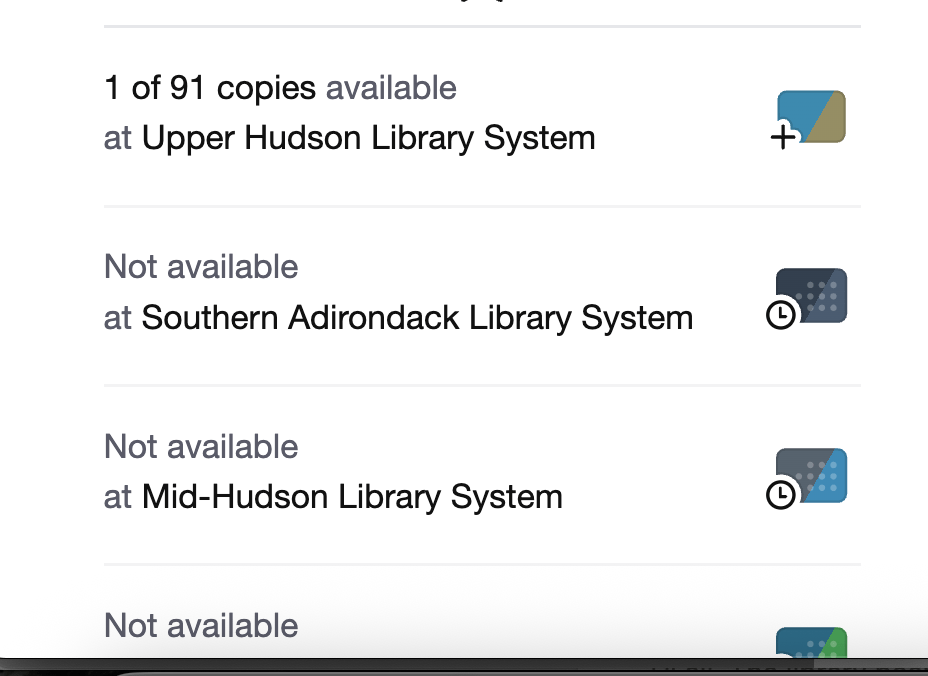
Curious about which library owns the content? You can tap on the library card icon next to each item to see the owning library. The library cards for each system have their own color scheme.

On the list of owning libraries, you can see the name of each library system and if there are copies currently available for checkout. If there is a plus sign, it means the content is currently available for checkout from that library system. A small clock means there are no copies currently available from that system. By default, you will see the library system that has available copies or the shortest wait list first on the list.
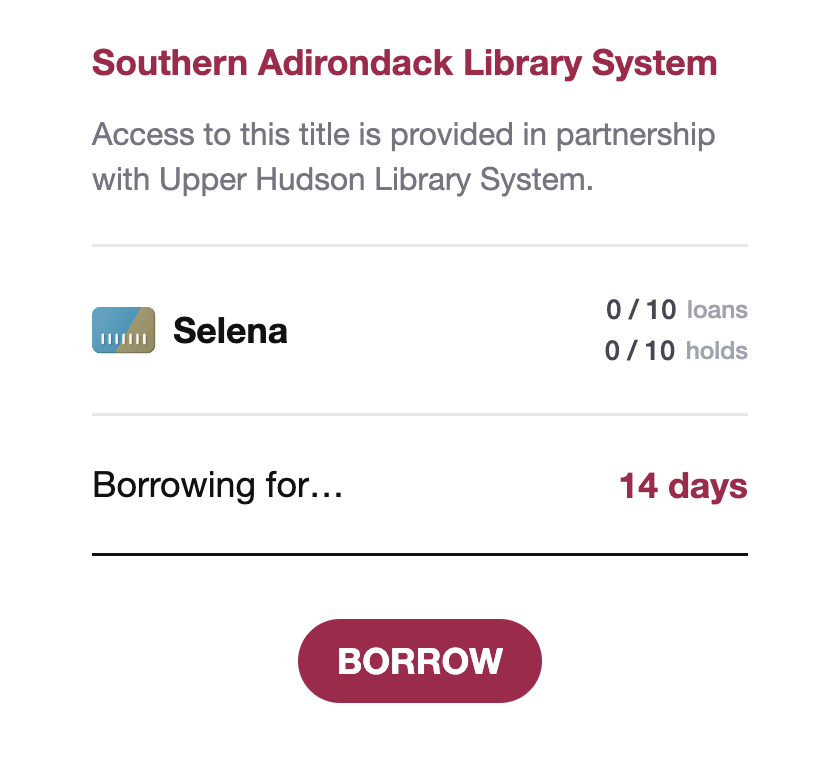
To borrow a title, tap on one that is available. Next, you will see a screen confirming your options and information about the partnership. You can change the borrow period by tapping on the number of days next to Borrowing for…
Tap the borrow button to complete the borrowing process.
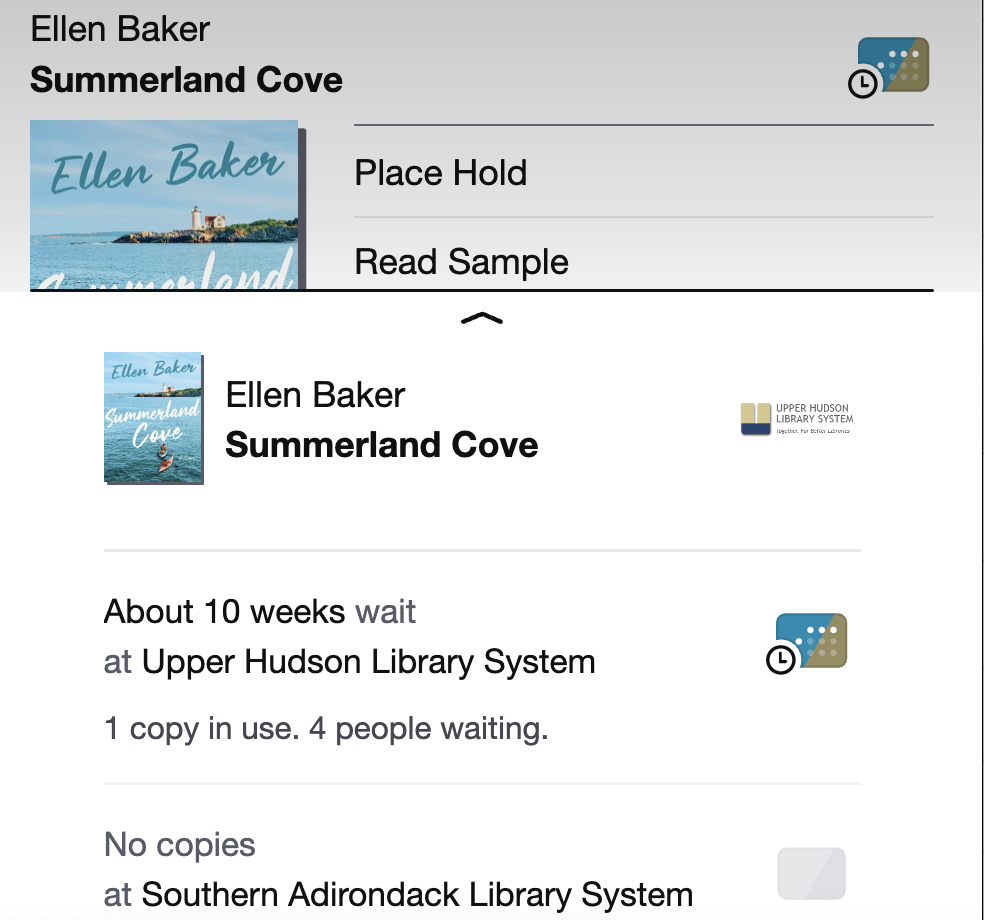
In order to place an item on hold, tap on a library system that has the clock icon on the library card. Next, you’ll see information about how long you can expect to wait for the item to be ready. Note: you will not be able to place a hold on an item from a partner library system. If an item from a partner library system is not available because it’s checked out, the status will show as not available.
Content from partnership libraries will also show in search results or browsing if you have chosen UHLS as your library from the Your Libraries list. Looking at the color scheme of the library card will let you know what library system owns the content. If UHLS does not own the item, you will need to choose deep search for the results to appear.
Managing Cards
If you would like to remove cards from the Libby app, tap on on Menu, and then the library card icon next to Upper Hudson Library System.

To remove partner libraries, tap the three dots, and then tap on Partner Libraries. Under Partnerships, tap the word remove next to the system you would like to remove. You will get a warning about deletion. Tap on the proceed button to confirm deletion. Please note, if a partner library is removed, all checked out items from that library will be automatically returned.

Color Schemes
In this same section, you can change the color schemes for each system’s library card. To change the colors, tap on Personalize to select custom colors for each partner library card. This may help to differentiate each card.
If you have any questions about partner libraries, please contact the library.