Looking for App or Software Recommendations?

makeuseofIn my constant search for helpful tech information to share with patrons and readers, I keep coming across one site that is extremely useful no matter what I’m looking for. I just can’t say enough about MakeUseOf.com.  We use some of their cheat sheets and guides in our library, and I subscribe to their joke blog for techies as well as their informative newsletter (subscribe on right side).  I even purchased a tablet based on one of their reviews!

I am often asked if I have any recommendations for apps and software.  And yes, if you are interested in Android or PC software within my range of interests, I can help.  Unfortunately, I haven’t owned a Mac since college, I’ve never had a chance to play with iPhones or Windows phones, and to my knowledge, I have never even tried a computer running Linux.  Enter MakeUseOf to save my sorry self and provide great recommendations for nearly every platform in their Best Of… series.  They even include recommendations for plugins in Firefox, Chrome, and WordPress!  While you’re there, you may want to browse their guides and tech help forums.  They really do have something for everyone.

Another great site for tech information is TechCrunch.  If you would like to see their app recommendations for Android and iOS, check out their article, The 20 Best iOS and Android Apps of 2012.

What are your go-to sites for tech information?

OverDrive Media Console Update – Important Changes

OverDrive LogoIf you use our OverDrive service to download e-books and/or audiobooks to an Android or iOS (Apple) device, there is a new update on the way that may not be as seamless as the updates have been in the past.  OverDrive emailed the release notes for the new version to partner libraries indicating the new update, version 2.6.5, will be made available on May 29th 28th via Google Play, the App Store, and the OverDrive website.

For Android users, the update includes some bug fixes and should go as smoothly as previous updates.  However, iOS users may have a bit more difficulty due to a change in Apple’s privacy policies.  The update will require all iOS users to reauthorize the device by re-entering Adobe ID information into the app.  If you have forgotten your Adobe password, there will be a “forgot password” link within the app, or you can head to Adobe’s sign-in page and click the “Trouble signing in?” link to reset your password.   Any audiobooks that have been partially downloaded will need to be re-downloaded from your OverDrive account’s bookshelf to get the missing parts.

As always, if you run into any trouble with the updates or the OverDrive service in general, please to not hesitate to email, call the Reference Desk (518-477-7476, option 5), or stop by to get assistance with your issue.

Looking for Help with Windows 8?

w8If you recently purchased a new Windows computer or tablet, chances are it uses the Windows 8 operating system (OS) or Windows RT (a simplified version of Windows 8 for some tablets).  The latest OS marks a major change in the appearance of Windows, which has thrown many users for a loop.  Here is a collection of resources to help answer your questions:

Videos

Websites – Step by Step Tutorials

Books (links lead to Upper Hudson Library System catalog)

I hope this helps some of you to navigate and troubleshoot your new operating system.  What do you think of Windows 8?

Apps to Help Identify a Tablet/Smartphone/Laptop Thief

11719567_sImage credit: seewhatmitchsee / 123RF Stock Photo

We all know tablets, smartphones, and laptops are attractive targets for thieves.  Not only is the equipment inherently valuable, but think of all the data, pictures, and account information you have saved on your phone!  The time to protect yourself is before your device is stolen.

MakeUseOf.com has written some helpful posts on how to prepare your devices for the worst case scenario.  I would recommend reading two short articles: Don’t Be a Victim: Practical Tips To Protect Your Smartphone From Theft and Identify the Guy Who Stole Your Phone, Tablet, or Laptop.

If thieves make you angry, and you would like to gloat at their humiliation and capture, try Revenge of the geek: MacBook thief made a fool of on YouTube. The end of the article contains links to more stories of foiled electronics thieves.

Do you use a recovery tool not mentioned in the articles above?  Please share it the comments section below.

Life After iGoogle

google-icon

Have you come to depend on iGoogle as a convenient home page with all of your favorite Google (and other) stuff in one place?  Me too.  Despite the popularity of iGoogle, Google has decided to discontinue the service after November 1, 2013.  This leaves many users scrambling for a new solution.  Whether you are an iGoogle user or not, you may find the suggestions below useful.

1.  Google Shortcuts
If you are looking for is quick access to Google products, and you use Firefox or Chrome for your browser, this add-on may help.  It does exactly what it sounds like – it adds shortcuts for Google services to the top of your browser.  You can choose which shortcuts you use by clicking the gear icon.  Here’s a clip of what the shortcuts look like on my browser (Firefox):

googleshortcuts

Warning:  the download page is in German, but the settings and operations are in English.

2. Myfav.es
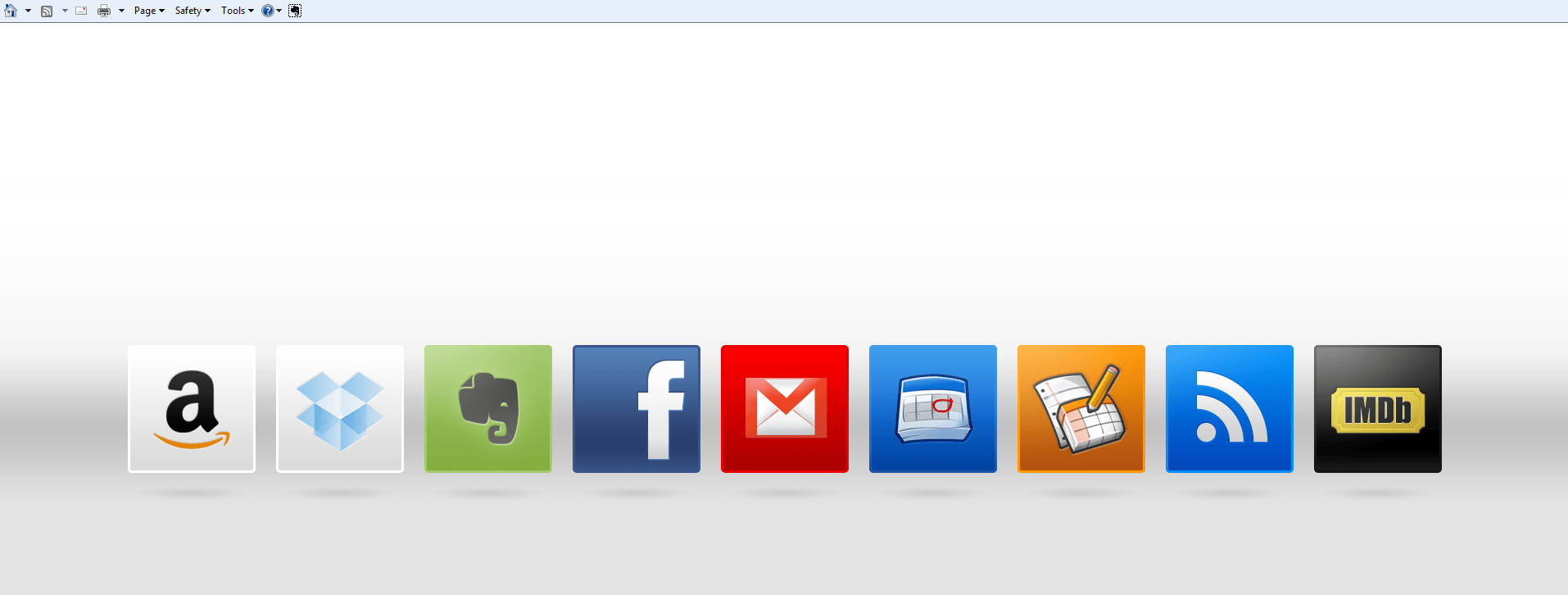
If you don’t need previews of content, just quick links to your favorite sites, this may be the service for you.  There are shortcuts for many, many websites available.  No account necessary.  Here is what the homepage I created looks like:
faves

Chances are, though, that you are looking for a page with gadgets that offers previews of your email, RSS feeds, calendar, etc.  Read on for other services that offer a similar experience to iGoogle.

3.  igHome
This one is my current favorite.  The setup was easy, and in no time I had a functioning page nearly identical to my iGoogle page.  As a bonus, shortcuts to Google services are included in a toolbar at the top of the page.  If you are using the Gmail gadget, be sure to turn on IMAP in your Gmail settings and approve the igHome application to access it.

4. Netvibes
This one is a bit more complicated than igHome to set up, but more customization is available.  Also, more widgets are available than with some other customized home pages.

5. uStart.org
This solution is similar to Netvibes.  You may want to experiment with both and see which you like better.

6. MyMSN and MyYahoo
These are personalized homepages provided by their respective companies.  If you don’t need any gadgets related to Google (Gmail, Google Calendar, etc.), one of these may work well for you.

7. Skim.Me
This one looks promising, but I’m still waiting for an invitation to get in on the beta.

Have you found another solution?  If so, let me know about it in the comments.

Happy computing!