We have been notified that OverDrive had a glitch in their system which falsely notified patrons that their items were ready for download. If you received one of these notices, and then got an error message when you tried to download, please disregard. You will be notified again when your item is actually ready. Sorry for the inconvenience!
Life After iGoogle
Have you come to depend on iGoogle as a convenient home page with all of your favorite Google (and other) stuff in one place? Me too. Despite the popularity of iGoogle, Google has decided to discontinue the service after November 1, 2013. This leaves many users scrambling for a new solution. Whether you are an iGoogle user or not, you may find the suggestions below useful.
1. Google Shortcuts
If you are looking for is quick access to Google products, and you use Firefox or Chrome for your browser, this add-on may help. It does exactly what it sounds like – it adds shortcuts for Google services to the top of your browser. You can choose which shortcuts you use by clicking the gear icon. Here’s a clip of what the shortcuts look like on my browser (Firefox):
Warning: the download page is in German, but the settings and operations are in English.
2. Myfav.es
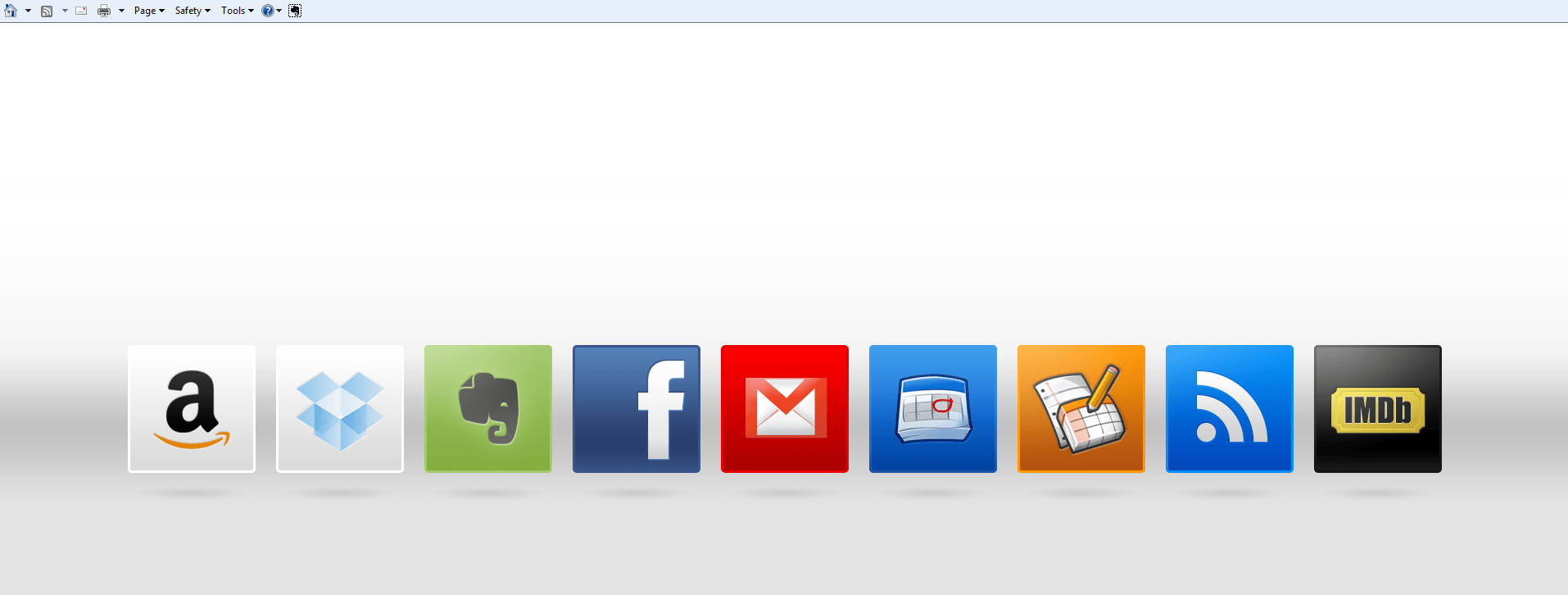
If you don’t need previews of content, just quick links to your favorite sites, this may be the service for you. There are shortcuts for many, many websites available. No account necessary. Here is what the homepage I created looks like:

Chances are, though, that you are looking for a page with gadgets that offers previews of your email, RSS feeds, calendar, etc. Read on for other services that offer a similar experience to iGoogle.
3. igHome
This one is my current favorite. The setup was easy, and in no time I had a functioning page nearly identical to my iGoogle page. As a bonus, shortcuts to Google services are included in a toolbar at the top of the page. If you are using the Gmail gadget, be sure to turn on IMAP in your Gmail settings and approve the igHome application to access it.
4. Netvibes
This one is a bit more complicated than igHome to set up, but more customization is available. Also, more widgets are available than with some other customized home pages.
5. uStart.org
This solution is similar to Netvibes. You may want to experiment with both and see which you like better.
6. MyMSN and MyYahoo
These are personalized homepages provided by their respective companies. If you don’t need any gadgets related to Google (Gmail, Google Calendar, etc.), one of these may work well for you.
7. Skim.Me
This one looks promising, but I’m still waiting for an invitation to get in on the beta.
Have you found another solution? If so, let me know about it in the comments.
Happy computing!
Digital Device Roundup

Hello everyone! I hope you all had an enjoyable holiday season. From the increase in questions about devices at the Reference desk, it appears e-readers and tablets were among the most popular gifts this season. As you may know, the library offers downloadable e-books and audiobooks for use on computers, smartphones, and other digital devices. As a general rule, if your device has a color display, the process for downloading items involves installing an app on your device. The procedure for downloading to black & white devices varies by device (details in links below).
If you received a digital device for the holidays, or if you just want to learn more about them before you buy, read on for links to some of helpful information sources.
1. iPad
About.com’s blog on all things iPad
Apple’s support site for iPad
iPad Academy
iPad for Dummies
Downloading library books to your iPad
2. Android Tablets (Google Nexus, Galaxy Tab, ASUS Transformer Pad, etc.)
Android 4.0 User Manual
How to use Android 4 tablets – basics (video)
Nexus Help
Nexus 7 for Dummies
Samsung Galaxy Tab for Dummies
Downloading library books to your Android tablet
3. Kindle Fire(s)
Amazon’s Kindle Support Page
Kindle Fire Tutorial Videos
Kindle Fire for Dummies
Downloading library books to your Kindle Fire
4. Other Kindles
Amazon’s Kindle Support Page
Kindle for Dummies
Downloading library books to your black & white Kindle
OverDrive Video Tutorials for Kindle
5. Nook Tablets (Color, HD, HD+)
Barnes & Noble Nook Support Page
Nook Tablet for Dummies
Nook Tablet Videos
Downloading library books to your Nook Tablet
6. Other Nooks
Barnes & Noble Nook Support Page
Nook eReader for Dummies
Nook Simple Touch Videos
Downloading library books to your Nook
7. Microsoft Surface
Unboxing the Microsoft Surface (video)
Microsoft Surface for Dummies
OverDrive Holiday Gadget Close-Up – Microsoft Surface
Downloading library books to your Microsoft Surface (Windows Phone App)
Do you have a gadget not listed here that you need help with? Let me know in the comments, and I will be happy to add resources to this post.
Happy e-reading!
More About Dropbox

After I wrote my previous post about uses for Dropbox, I found a great article by the folks at MakeUseOf that explains how to host a website using Dropbox. It is titled, appropriately, How to Host a Simple Website Using Dropbox. Here at the library, I often get asked how to setup a basic website. It’s great to have another tool to share with patrons. I haven’t tried this method myself, so I’d be interested to hear about your experience if you have used Dropbox to host your website.
Nifty Uses for Dropbox
There are lots of ways to store and share your files in the cloud, keeping them accessible from any browser. Some of the free services available include Dropbox, SkyDrive, and Google Drive. If you are a Dropbox user, you may be surprised at some of the clever suggestions Whitson Gordon from Lifehacker has for using the service in this post.
Some of my favorites are:
#6. Print Documents to Your Home Printer from Any Computer
#5. Host a Web Site or Start Page for Your Browser
#1. Keep the Same Apps, Settings, and Passwords on All Your PCs
How do you use your Dropbox?